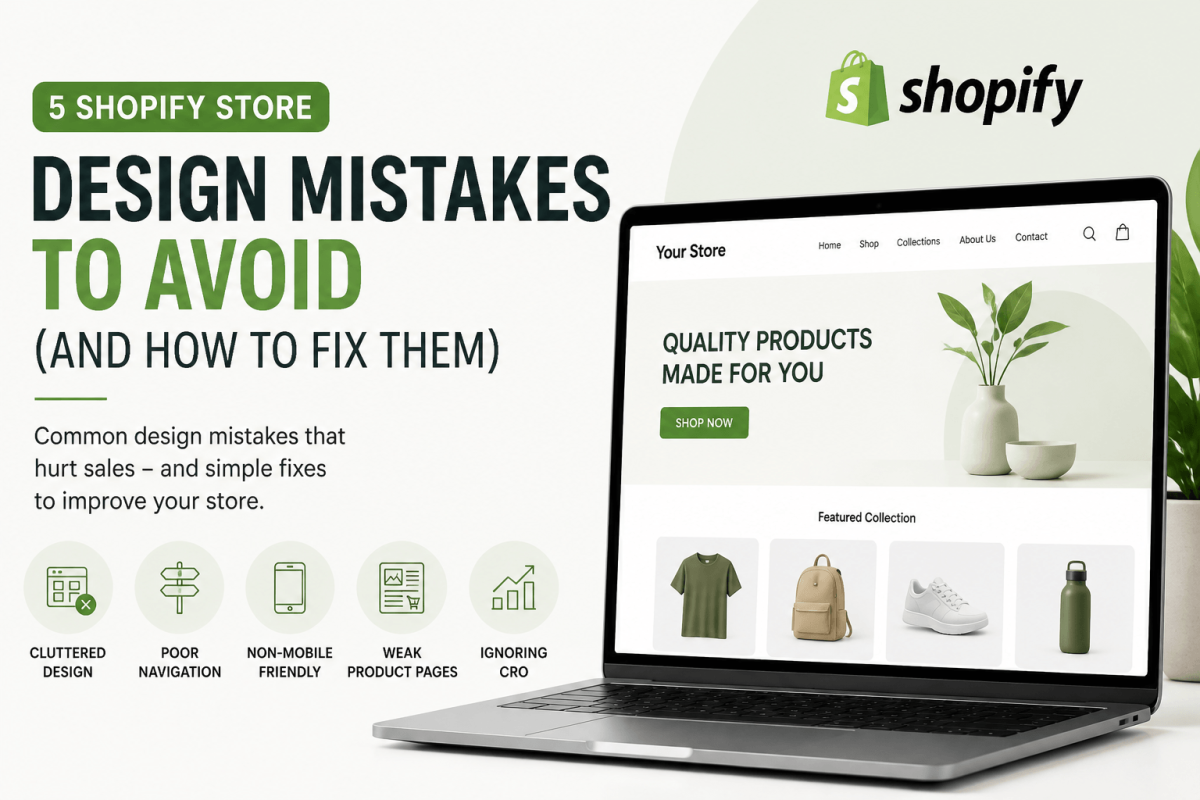
Starting your own online store has never been easier, thanks to Shopify — one of the leading e-commerce platforms. Whether you’re selling physical products, digital goods, or services, Shopify offers an all-in-one solution to help you manage, market, and grow your business.
In this beginner’s guide to Set Up Your Shopify Store, we’ll walk you through every step of the process, from creating your account to choosing a theme and optimizing your store for success. Let’s dive in and get your store up and running!
Why Choose Shopify for Your E-commerce Business?
Before we start, you might be wondering: why Shopify? Here are some reasons Shopify is the preferred choice for many e-commerce entrepreneurs:
- Ease of use: Shopify is designed to be user-friendly, with an intuitive interface that even beginners can navigate.
- Customizable design: Choose from a wide range of themes, or fully customize your store’s look and feel.
- Comprehensive support: Shopify offers 24/7 customer support, plus a wealth of resources to help you along the way.
- Built-in marketing tools: Shopify comes with SEO features, social media integrations, email marketing tools, and more.
Now, let’s get started with setting up your store!
Step 1: Sign Up for Shopify
- Visit Shopify: Go to Shopify’s website and click on the “Start free trial” button.
- Create Your Account: Enter your email address, create a password, and choose your store name (something memorable and relevant to your business). Shopify will guide you through the initial setup steps.
- Answer a Few Questions: Shopify will ask you a few basic questions about your business to personalize your experience. Answer them and proceed.
Step 2: Choose a Shopify Plan
Shopify offers various pricing plans depending on your business needs. Here are the most common options:
- Basic Shopify: Ideal for those just starting out.
- Shopify: Includes advanced features for growing businesses.
- Advanced Shopify: Best for large-scale operations with high-volume sales.
You can start with a 14-day free trial and upgrade later based on your needs.

Step 3: Select a Shopify Theme
Your Shopify theme determines the look and feel of your store. Shopify has a wide range of free and paid themes available, each designed to be fully customizable.
- Go to the Shopify Theme Store: From your dashboard, click on Online Store > Themes.
- Browse and Preview Themes: Browse through the available themes. Use the Preview feature to see how your store will look with each theme.
- Choose a Theme: Select a theme that aligns with your brand’s style and customer experience goals. Popular options include Dawn, Brooklyn, and Minimal.
Step 4: Customize Your Theme
Now that you’ve selected your theme, it’s time to make it your own.
- Customize Your Store’s Look: From your Shopify admin panel, go to Online Store > Themes > Customize. Here, you can change the layout, fonts, colors, and more.
- Add Your Logo: Upload your store logo for branding consistency.
- Set Up Your Navigation: Organize your menus so customers can easily find what they’re looking for. Add key categories like Home, Shop, About Us, and Contact.
Step 5: Add Your Products
Adding products is the core of your Shopify store. Here’s how you can do it:
- Go to Products: From your Shopify dashboard, click on Products > Add product.
- Product Details: Fill in essential information like product name, description, images, and pricing. Make sure your product descriptions are SEO-friendly, using relevant keywords.
- Set Inventory & Shipping: Include details like inventory quantity and set up shipping rates.
Pro Tip: Use high-quality images for your products and write detailed, engaging descriptions to increase conversions.
Step 6: Set Up Payment Methods
Shopify supports various payment gateways, including Shopify Payments, PayPal, and Stripe.
- Go to Payment Settings: From the Shopify admin, navigate to Settings > Payments.
- Choose Your Payment Gateway: Choose Shopify Payments for the lowest transaction fees, or select another payment method based on your location and business needs.
- Set Up Your Payment Information: Follow the prompts to link your bank account and verify your payment setup.
Step 7: Configure Your Store’s Shipping Settings
Shipping is crucial for any e-commerce business. Here’s how to configure your Shopify store’s shipping options:
- Go to Shipping Settings: Navigate to Settings > Shipping.
- Set Shipping Rates: Define shipping zones (e.g., domestic or international) and set rates for each region.
- Enable Carrier Calculated Shipping: You can integrate with carriers like USPS, UPS, or FedEx to offer real-time shipping rates.
Step 8: Add Store Policies
It’s important to have clear store policies to build trust with your customers. Here’s what you should include:
- Refund Policy
- Shipping Policy
- Privacy Policy
- Terms and Conditions
You can use Shopify’s built-in templates or create custom policies.
Step 9: Set up your Shopify store‘s SEO
Search engine optimization (SEO) will help you rank in search results on platforms like Google. Here’s how to optimize your Shopify store:
- Set SEO-friendly URLs: Ensure your product pages and collections have clear, descriptive URLs.
- Optimize Titles and Meta Descriptions: Go to Online Store > Preferences and add a custom meta description and title for your homepage.
- Add Alt Text to Product Images: This helps search engines understand what’s in your images and improves accessibility.
Step 10: Launch Your Store!
Once everything is set up, it’s time to go live! Before launching, double-check that:
- Your store is mobile-friendly.
- Payment and shipping methods are working correctly.
- Your store policies are in place.
When you’re ready, click Publish and share your store with the world!
Conclusion
Congratulations! You’ve successfully set up your Shopify store. Now it’s time to promote it, attract customers, and start selling. With a mobile-optimized, SEO-friendly, high-converting store, you’re on the right path to building a successful e-commerce business.
For more expert advice on Shopify store design, product research, or conversion optimization, feel free to reach out to me!
Call to Action
Need help setting up or optimizing your Shopify store?
Contact me: helloecomlyn@gmail.com today for a free consultation, and let’s build a high-converting store that drives real sales!